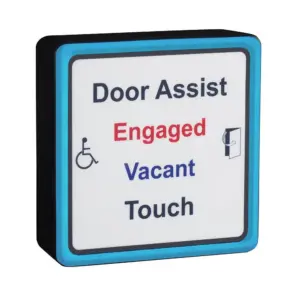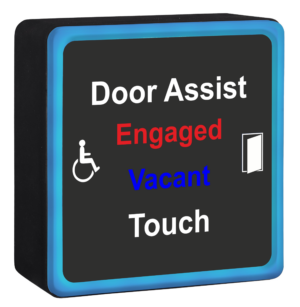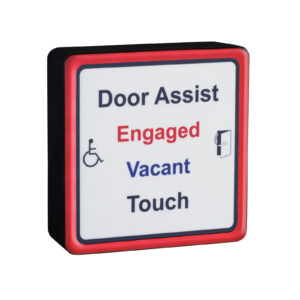


SQWCHASS-K Contactless Toilet Indicator & Sensor
£108.25 ex VAT
Contactless Toilet Indicator & Touch Switch with Antimicrobial Protection.
Lock override keyswitch is built into the under side of the back box.
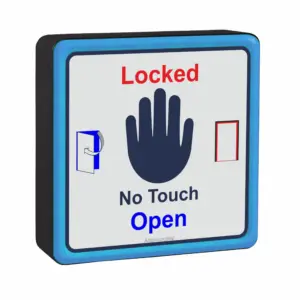
This innovative illuminated square contactless toilet indicator features a scratch-resistant, antimicrobial acrylic label and operates with a simple hand approach. When activated, the relay switches and signals the automatic door to open. It also has red and blue LEDs to indicate whether the restroom is engaged or vacant.
Key Features:
- Contactless Operation: Activation range of up to 50mm for touch-free operation, ensuring hygienic use.
- Antimicrobial Protection: The label is protected by an additive that kills 99.9% of germs, including harmful bacteria such as E. coli, MRSA, Salmonella, and the flu virus.
- Prevents Mould Growth: SteriTouch® helps prevent mould, biofilm, and fungi growth, which can cause costly redecoration cycles and respiratory issues, especially in damp environments.
- Long-lasting Protection: The antimicrobial effect works continuously to prevent bacterial contamination, eliminate odours, and protect against staining and degradation, extending the life of the product.
- Clear Status Indicators: Red and blue LEDs clearly indicate whether the restroom is engaged or vacant, ensuring quick, intuitive use.
To discuss this product in more detail, or to explore bespoke labels or system options, please contact us. Our team will be happy to assist with technical guidance, custom requirements, or project specifications.
- Square illuminated external no touch sensor for disabled toilet system/ toilet locking system
- Switch to activate assisted entry, if toilet is vacant
- 12-28Vdc
- Entire label is sensitive
- Red & blue LED indicators to show engaged/vacant status
- Sounder on activation
- Scratch resistant anti-microbial acrylic label
- Reinforced nylon housing
- Comes with built in emergency override key switch
- IP54


▪ Touch sensor doesn’t beep when touched
Step-by-step checks (de-power system for 10 seconds after each step):
-
Ensure the sensor is securely mounted—not dangling or held in hand.
-
Check the jumper next to the sensor relay is fitted and making properly.
-
Use a multimeter to check voltage across +V and 0V at the sensor.
- The touch sensor and LEDs use separate supplies – LEDs being lit doesn’t mean the touch sensor side has power.
-
Confirm 0V is in the correct terminal, not the REM terminal.
- Disconnect the sensor from existing cabling and connect it directly to the controller on a short piece of cable to rule out cable issues.
▪ The system locks with no one inside
Solution:
-
Ensure mag lock contacts are wired into the door switch terminals on the control board.
-
Adjust the potentiometer on the internal touch sensor to switch for 3 – 5 seconds.
-
Reduce the sensitivity of the internal touch sensor, especially if emergency lighting or hand dryers are nearby.
-
Remove any excess cable inside the touch sensor back box.
-
Re-terminate internal touch sensor connections.
- Consider fitting the MULTI-TIMER reset relay.
▪ Automatic door doesn’t open when it should
Solution:
-
Remove the two wires from the C and NO door activation terminals on the control board and join them together.
-
If the door still doesn’t open, the problem lies with the operator—contact the supplier/manufacturer.
▪ System goes RED but mag lock does not engage
Solution:
-
Check the position of the override keyswitch on the external sensor.
-
Ensure the break glass hasn’t been pressed.
-
Inspect the lock fuse.
-
Link out the NC & KS/BG terminals on the control board.
-
If the system works after linking, but your keyswitch and break glass are correctly positioned, there is likely a cable break.
-
-
Use a multimeter to check for voltage at the mag lock.
-
If voltage is present but the lock isn’t engaging, the lock is faulty.
-
▪ The touch sensor LEDs aren’t lit
Solution:
-
Verify that the solid/flashing LED jumper on the control board is in place.
-
Refer to the wiring diagrams section.
-
Use a multimeter to check voltage at the touch sensor LED terminals.
-
The LEDs have a separate power supply from the sensor itself—if the sensor beeps but LEDs don’t light, check for a cable break.
-
-
Remove the sensor from the wall and connect it directly to the control board using a short cable to rule out wiring issues.
▪ Touch Sensor LEDs Flashing (Want Solid Light)
Solution:
-
Change the jumper position on the control board.
▪ Can multiple internal or external touch sensors be used?
Yes!
-
Multiple Door Assist or Touch to Lock/Open sensors can be wired in parallel.
| Weight | 0.27 kg |
|---|---|
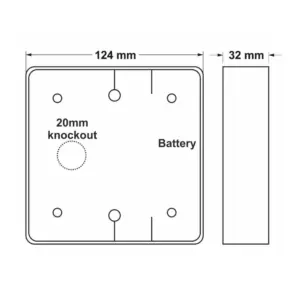
| Dimensions | 124 × 124 × 32 mm |
Related products
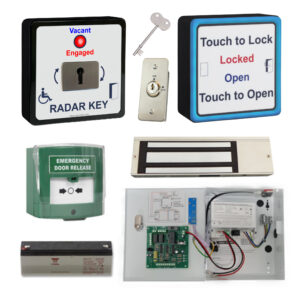
SQWCRADAR-KIT – RADAR toilet door lock for Disabled Toilets
£625.13 ex VAT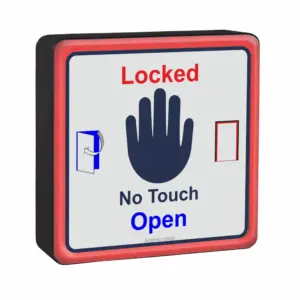
SQWCHLOCK Contactless Toilet Lock Sensor
£88.04 ex VAT

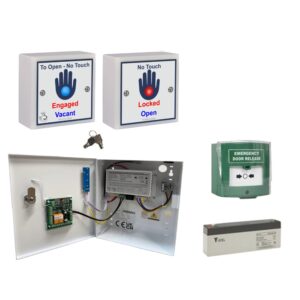
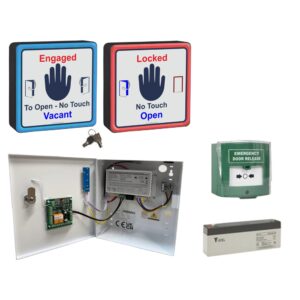
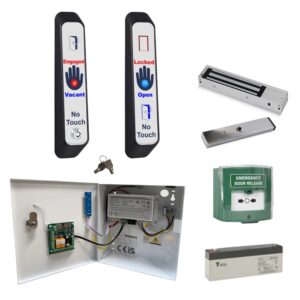
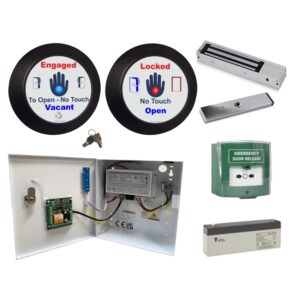
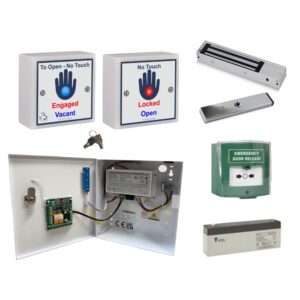
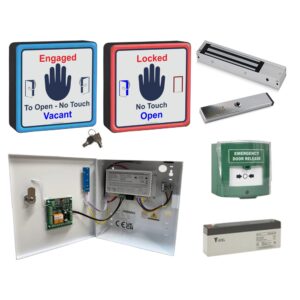
WCKIT-HAND Contactless Toilet Door Locking Kit
From £312.94 ex VAT

SQWCEV Toilet Engaged Vacant Indicator
From £79.38 ex VAT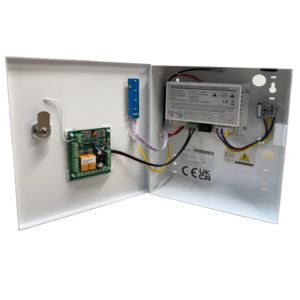
WCRXPCBPSU Power Supply with Multi-Functional Control Board
£134.38 ex VAT